
Cinemagraphs stop people scrolling. Everything is calm except for one detail, like coffee steaming or a flag moving, and the eye goes straight to it.
How to make one
- Open your clip and trim it to a loop that looks good.
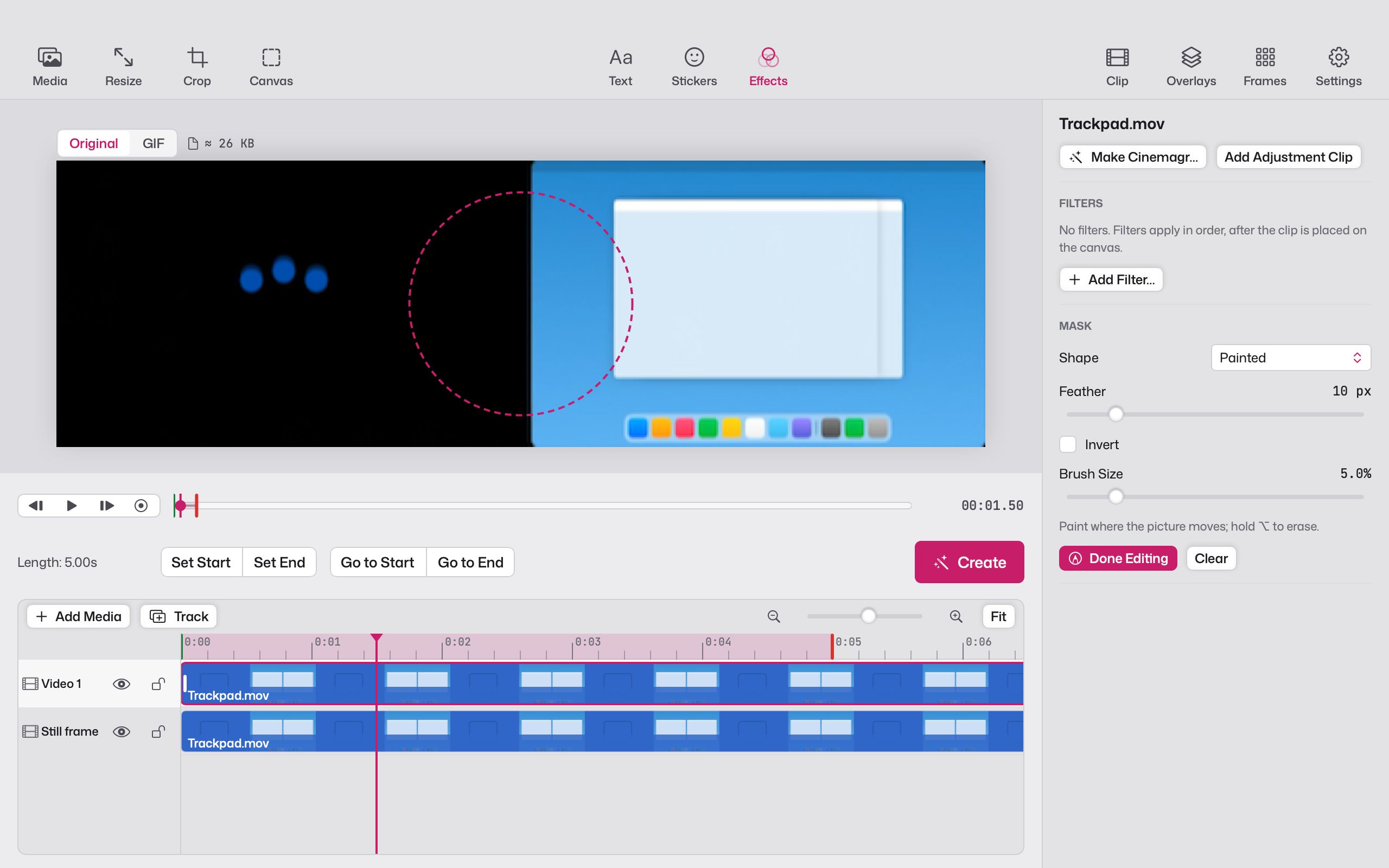
- In Effects, choose Make Cinemagraph. Giffiti adds a still frame underneath your clip.
- Paint over the area that should move. Hold ⌥ to erase. Change the brush size and soften the edge with feather.
- Click Done Editing, then Create.
Masks for every shape
Painting is the quickest way for organic shapes. For clean edges, use a rectangle, ellipse or path mask instead. Invert a mask to swap which part moves and which part holds still.
Smaller as a bonus
With most of the picture frozen, a cinemagraph has much less to store than a normal GIF. In our tests the cinemagraph came out under half the size of the plain export, which helps when you’re working to a size limit.
Add a look
Combine a cinemagraph with any of the 29 effects, or put a caption on top. It’s still a normal Giffiti project, so everything else works the same way.