

Showing beats telling. A short GIF of a bug, a new feature or a quick how-to explains in seconds what a paragraph can’t.
Pick what to record
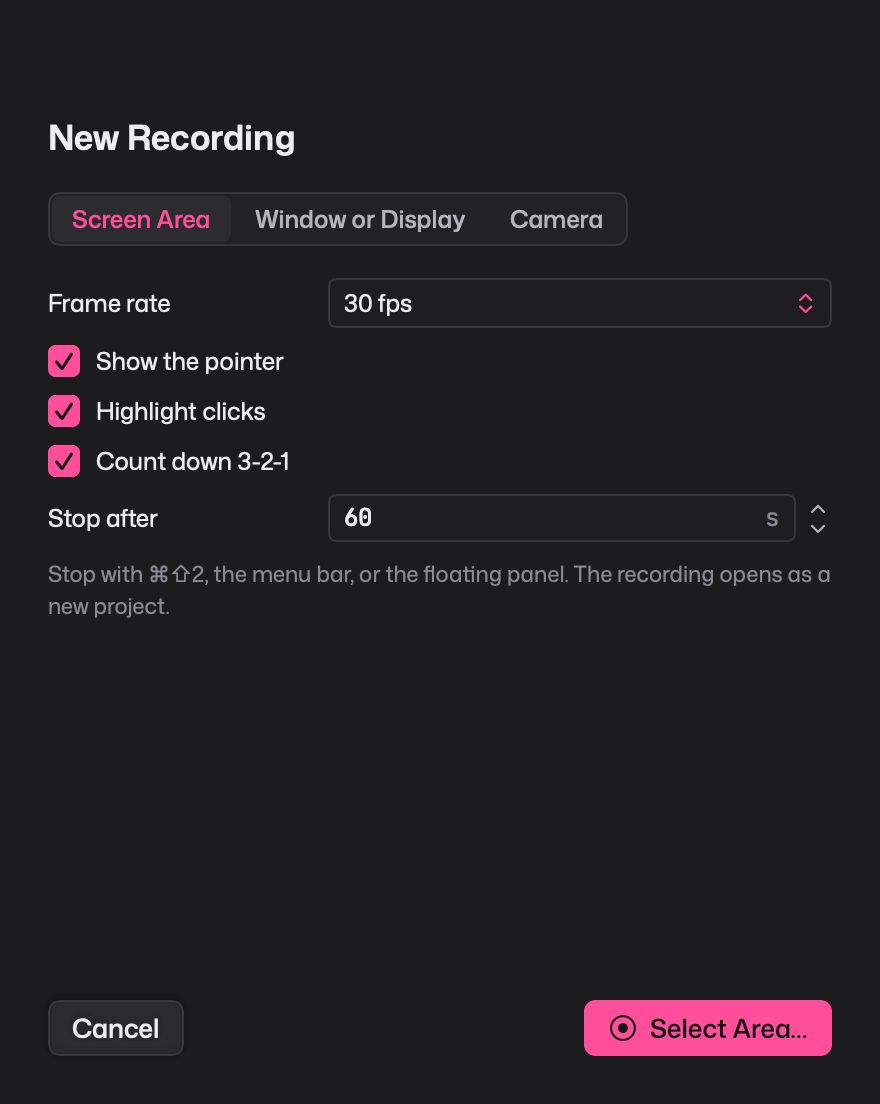
- Screen area. Drag out any rectangle.
- Window or display. Record one app window or a whole screen.
- Camera. Record yourself or something on your desk.
Recording options
Choose a frame rate, show or hide the pointer, highlight clicks so people can follow along, and turn on a 3-2-1 countdown. Set a time to stop automatically, or stop with ⌘⇧2, the menu bar or the floating panel.
Straight into the editor
There’s no separate export-then-import step. The recording opens as a new project, where you can:
- trim the start and end, or drop and retime individual frames
- add captions to explain what is happening
- crop to just the part that matters
- export as a GIF, or as an MP4 for places that prefer video
Small enough to share
Screen recordings are full of flat colour and still areas, which suits GIFs well. Giffiti stores only what changes between frames, and you can set a target size to fit under.