A GIF that’s too big won’t upload, won’t send, or takes ages to load. Giffiti gives you two ways to fix that: let it fit the file for you, or tune it by hand with a live preview.
Fit under a size
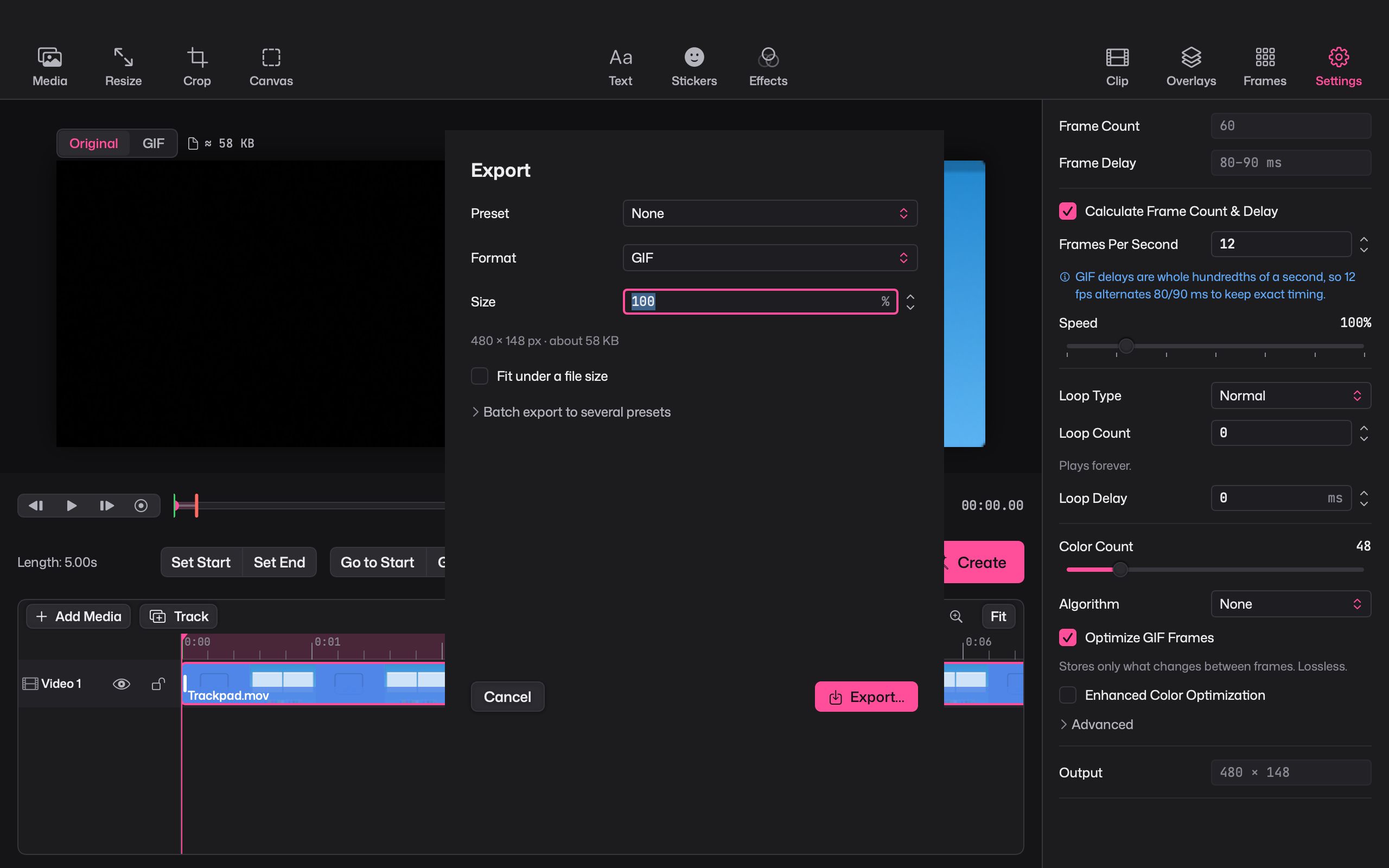
In the export sheet, turn on Fit under a file size and enter a number, such as 10 MB. Giffiti works out settings that keep the GIF under it. You can also export several presets at once when one clip has to go to several places.
Tune it yourself
Switch the preview from Original to GIF to see exactly what the finished file will look like, colours and all. The size estimate updates as you change things.
- Fewer colours. Lower the colour count. Giffiti picks the colours to suit each clip, with an optional extra pass for better colour accuracy, and can use one set of colours for the whole GIF or a fresh set per frame.
- Dithering. Dithering blends colours with fine patterns so gradients don’t band. Choose none, ordered, blue noise, Floyd–Steinberg, Sierra Lite or Atkinson, depending on the look and size you want.
- Less flicker. Giffiti steadies colours from one frame to the next, which calms the shimmer you often see in GIFs.
- Lossy savings. Allow a little loss for a noticeably smaller file.
- Frame optimization. Giffiti stores only what changes between frames. This one costs nothing in quality.
Cut what you don’t need
- Trim the start and end, or lower the frame rate.
- Resize or crop to the part that matters.
- Drop, retime or hold individual frames in the Frames view.
Smaller than the Mac’s own GIF maker
On all 8 of our test clips, Giffiti made smaller GIFs than the GIF maker built into macOS, at the same quality. A cinemagraph can be smaller still, because most of the picture stays still.