Most of the time you just want a short loop from a longer clip. Giffiti makes that a three-click job.
Open, trim, Create
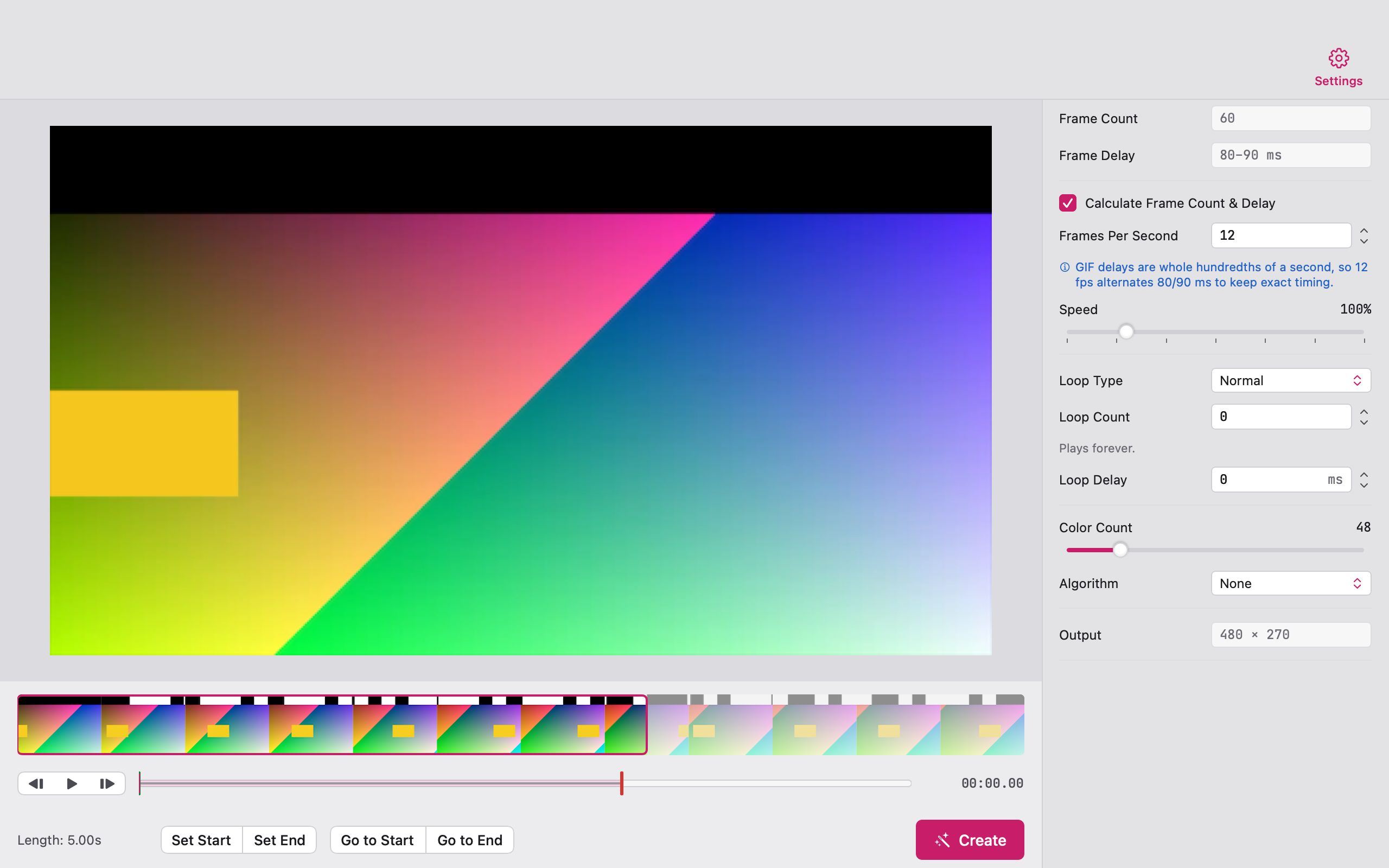
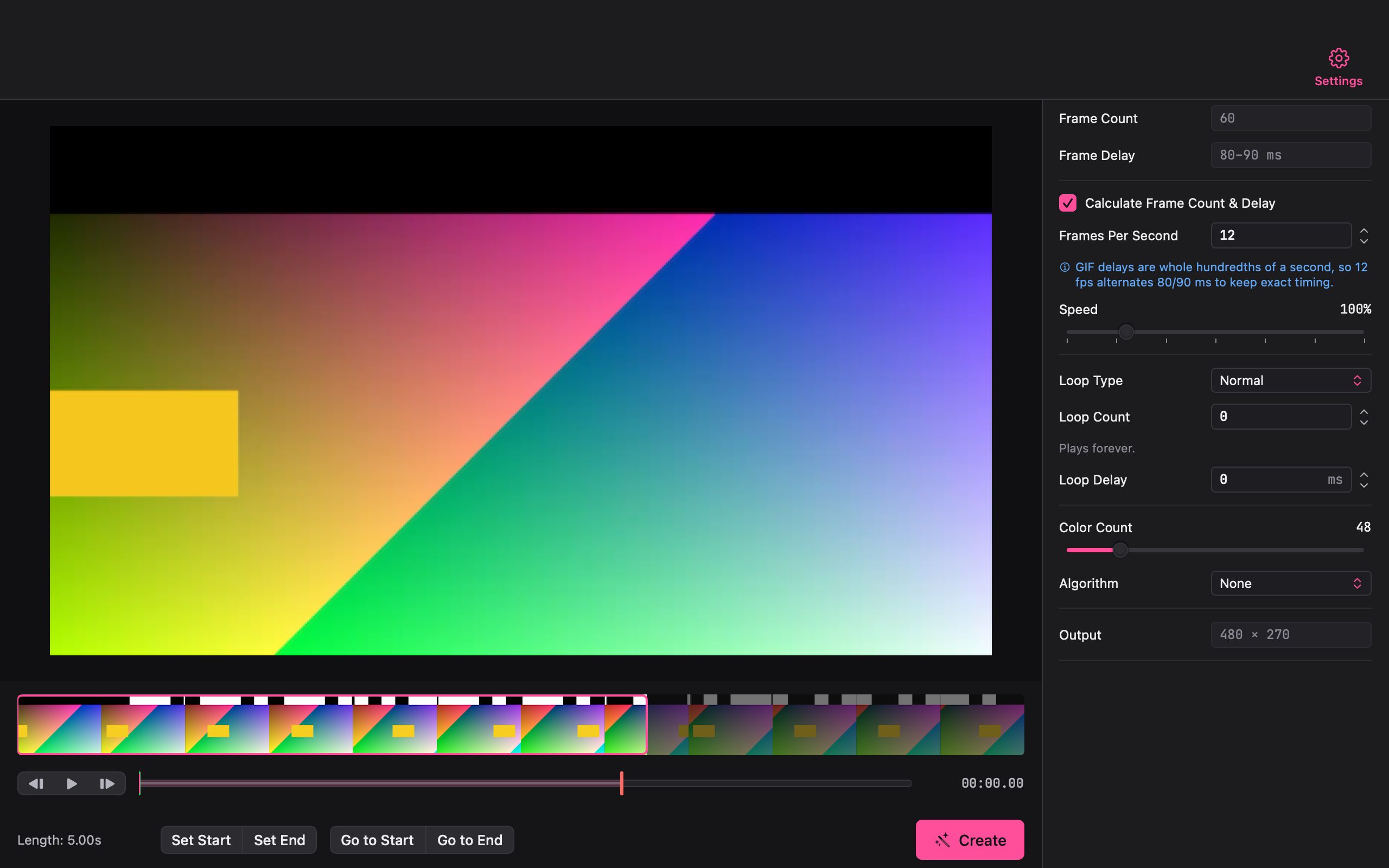
- Open or drop a video on the Giffiti window. It appears as a filmstrip under the preview.
- Play to the moment you want and click Set Start, then move on and click Set End.
- Click Create and save your GIF.
That’s it. The settings are ready for most clips, so you don’t have to touch anything to get a good result.
Settings when you want them
- Frame rate and speed. Pick the frames per second, or speed the whole clip up or slow it down.
- Loop style. Play normally, in reverse, or back and forth. Set how many times it loops, or loop forever.
- Colours. Choose how many colours the GIF uses. Fewer colours means a smaller file.
- Output size. Resize with a sharp, high-quality scaler, crop to a shape, or use an aspect preset.
GIF timing is counted in hundredths of a second, so some frame rates can’t be shown exactly. Giffiti alternates frame lengths so the loop still runs at the right speed overall.
Phone videos look right
Portrait videos come out upright. iPhone HDR video is converted carefully so the GIF keeps its contrast and colour instead of looking grey.
Beyond a simple loop
When a clip needs more, the same window opens up into a full editor. Add captions, layer clips on a timeline, or shrink the file to fit a size limit.